Save and reuse warranty terms
Write your warranty once, set a default, attach it to an invoice, and share one list across your team.
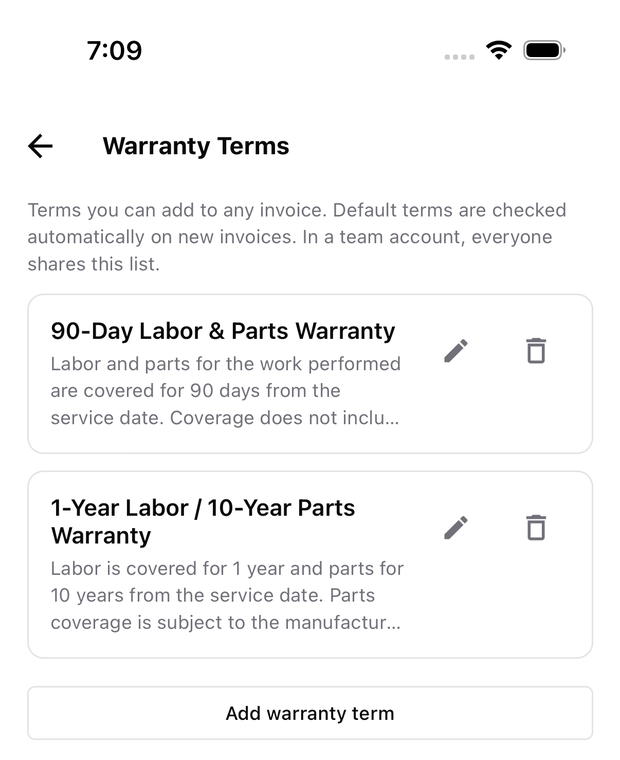
Save your warranty wording once, then attach it to an invoice. Check that the terms match the coverage your company offers.
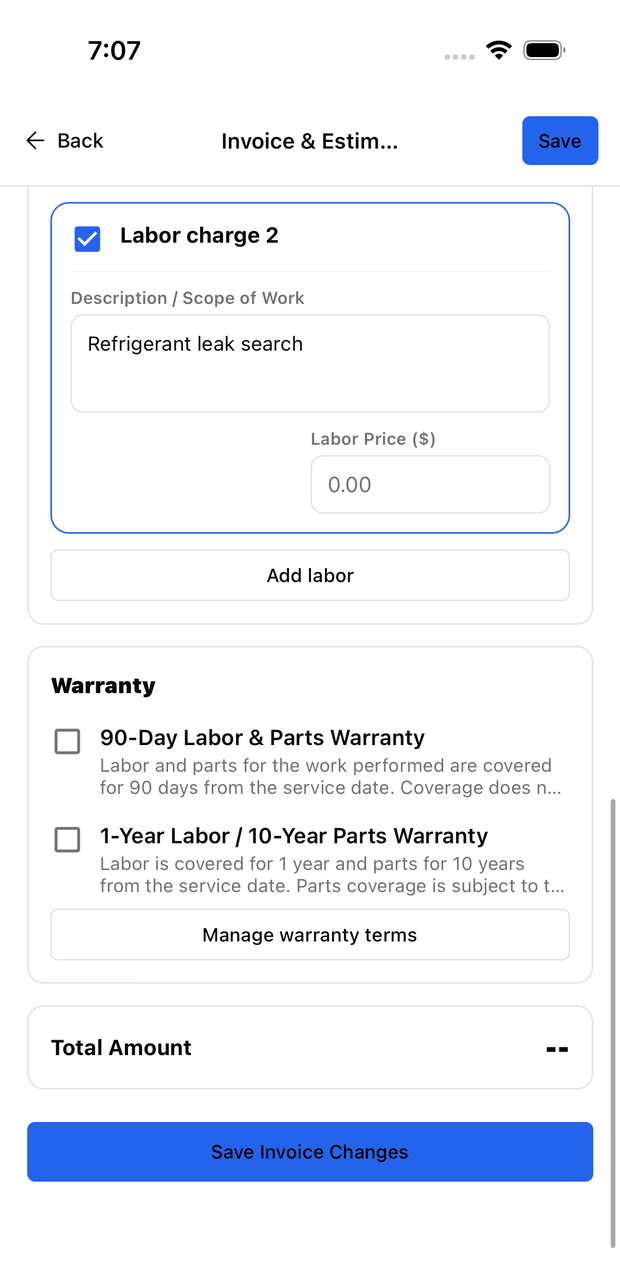
- Open Job Documents → Invoice & Estimate → Update Price.
- Scroll to Warranty and tick the terms for this job.
- Save and review the wording on the invoice before exporting.
Add or change saved terms
Select Manage warranty terms, or open Warranty Terms from Job Documents. Choose Add warranty term to enter a title and wording. Use the pencil to edit a term, or the bin to delete it.
A default term is selected automatically for new invoices. Untick it when it does not apply. Starter terms are examples: edit or delete them to match your company policy.
Does editing a term change old invoices?
No. An invoice keeps the wording attached at that time. To apply revised terms to an existing invoice, untick the term, tick it again, and save. Export a new PDF; copies already sent will not change.
In a Team account, active members share the saved warranty list.
See create or edit an invoice for prices and PDF sharing.