Create or edit an invoice or estimate
Set prices, switch between an estimate and invoice, and share the saved PDF.
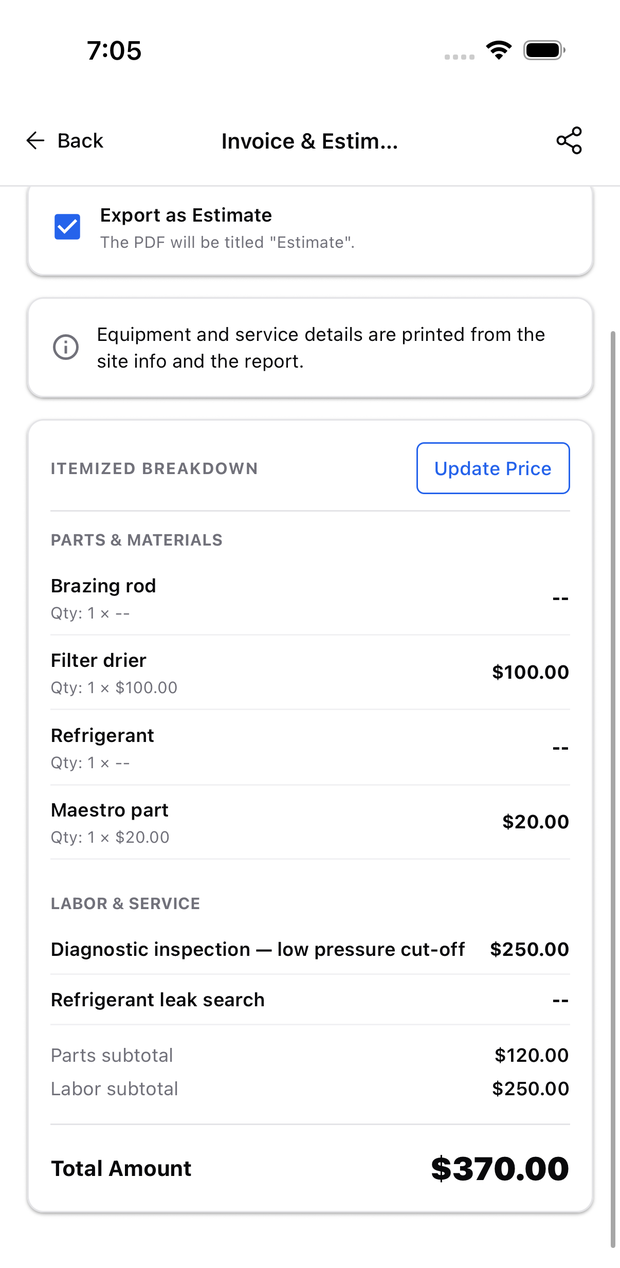
Open Job Documents → Invoice & Estimate in the diagnosis. You can edit the prices later with Update Price.
- Select Update Price.
- Set Qty and Unit Price for parts, and add labor descriptions and prices. Use Add part or Add labor for missing lines.
- Untick any line you do not want printed, or choose a flat total and enter the scope of work.
- Tick Export as Estimate for an estimate, or leave it unticked for an invoice.
- Save, then tap the share icon to email, message, or save the PDF.
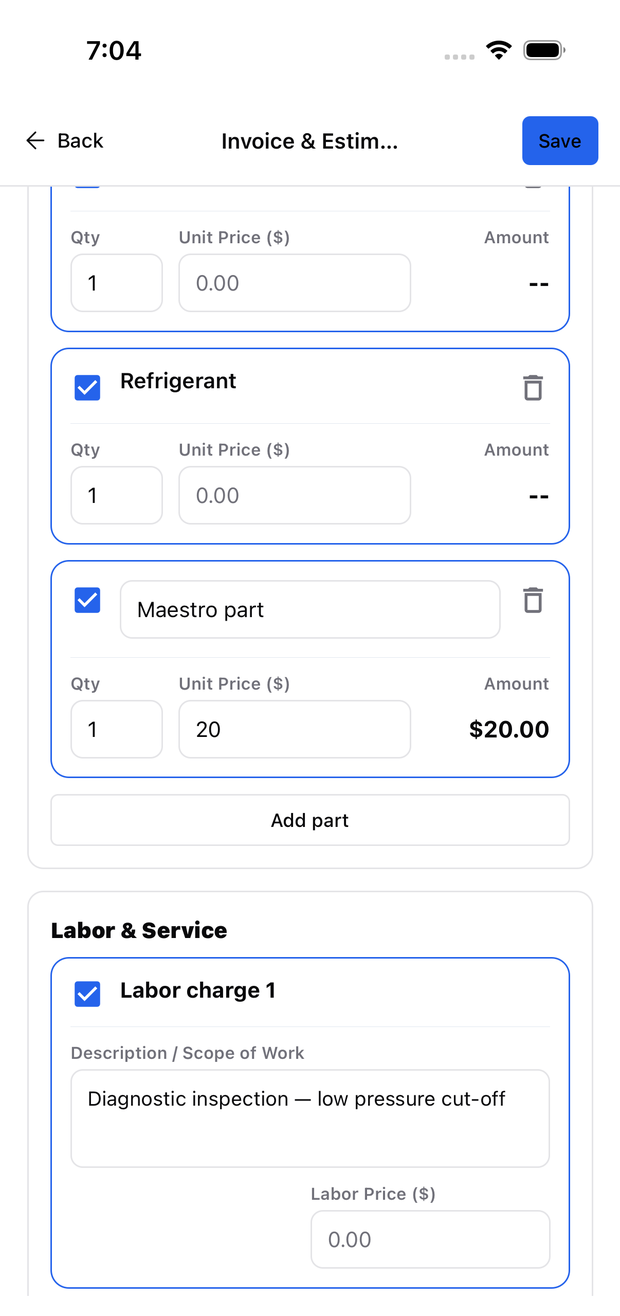
Parts from the report are already listed. Switching to a flat total keeps the itemized lines so you can switch back later.
Can I change it after creating it?
Yes. Open Update Price, change the lines or total, and save. Export a new PDF to send the revised version; a copy already sent to the customer will not change.
The share icon is hidden while editing. Save first. Check Site Info for the customer and address, and warranty terms for text attached to the invoice.