Edit a report or mark repairs complete
Correct a section, review an AI rewrite, or record work completed on a later visit.
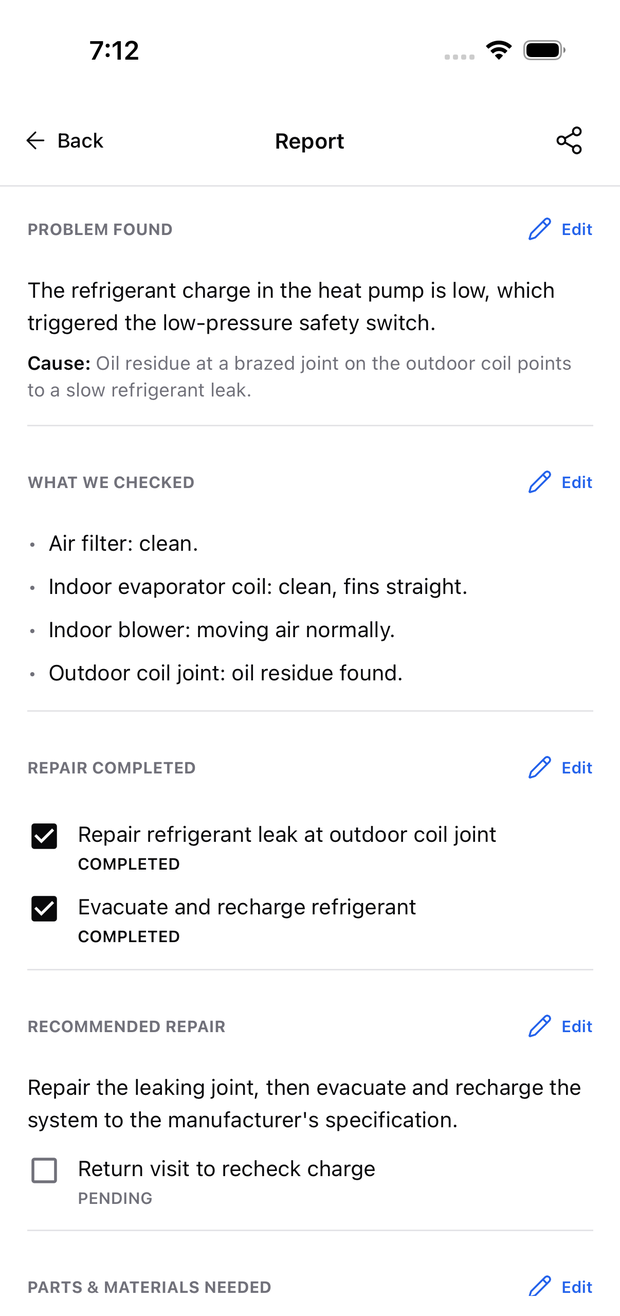
Open Job Documents → Diagnosis Report to correct a section or record repairs completed since the report was made.
- Select Edit beside the section you need to change.
- Correct the text or tick the repairs you completed.
- Add any missing repair, then save.
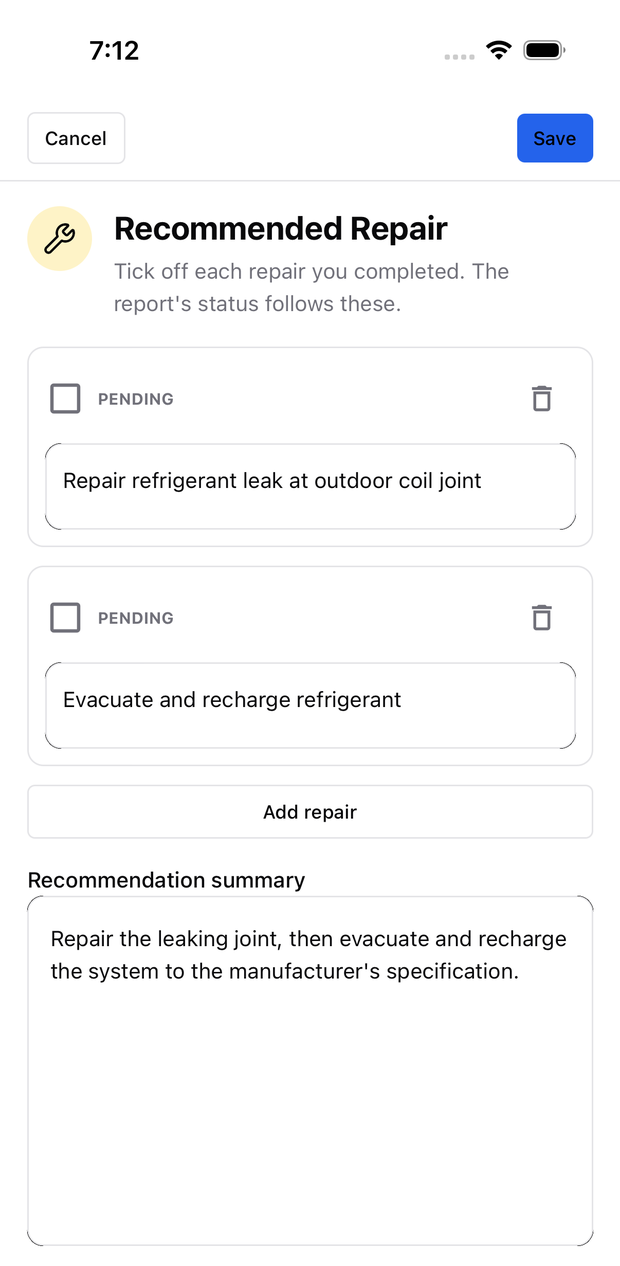
Completed repairs move under Repair Completed; unfinished work stays under Recommended Repair. You can record a later visit without generating another report. Manual edits save locally and upload after reconnecting.
Ask for a rewrite
Describe the wording change you want, such as “make it shorter.” You can type or dictate the instruction, up to 1,000 characters. Rewriting needs internet and uses tokens.
Review the proposed text before saving or discarding it. Include only work you performed, and check readings and part numbers; the rewrite cannot verify them for you.
If the report says Out of date
The diagnosis changed after generation. Follow outdated-report help before sharing. For a PDF, save the edits and use the header’s share icon.